Your club will share a registration link that looks like
clubhq.io/register/[club-name]/[program-name]. Opening it takes you straight to the
registration form for that specific program — no account or password needed. The form
shows your club's logo and colors: its buttons, links and progress steps use the club's
color, and the browser tab reads "Club name Registration - ClubHQ". Your club runs its
registration on ClubHQ, which is why Powered by ClubHQ appears at the bottom of the page,
under Need help registering?. It opens ClubHQ's website in a new tab, so the form you're
filling in stays where it is.
Registered with this club before?
If you see "Registered with us before? We'll email you a link that fills in your info," enter your email and click Send me a prefill link.

The box then reads "If your email is in our records, we've sent it a link that fills in your details." It reads the same whether or not the club has that email, so nothing arrives if there's no record of it. The link expires in 30 minutes. If nothing comes after a few minutes, check your spam folder, or fill in the form yourself.

Opening the link brings you back to this form with your (or your athlete's) info already filled in. It works whether you've registered before or the club created your record another way, for example when staff set up a membership. With past registrations the details come from your most recent one — including the athlete's home address and, for a minor, the parent/guardian's contact and address. That works whether the link went to your email or to the athlete's own: a link sent to a minor athlete's email fills in the parent/guardian from their last registration (only if no parent/guardian was recorded do you enter one yourself). Without a past registration, the details come from the club's records: the athlete and the parent/guardian linked to them, or a parent and their athletes. Anything the club doesn't have, such as grade, stays blank for you to fill in. If more than one athlete is on file under that email, you'll be asked "Who are you registering?" so you can pick the right one before continuing.
The prefill only covers the fields above — any club-specific questions on Review & Sign still need to be answered fresh each time you register.
This link fills in a new registration — it doesn't resume or finish paying for one you already started. If you're coming back to finish paying for a registration you already submitted, see Pay from an email link.
The steps
The form walks through up to six steps — Registration Details, Choose a Practice Time, Athlete Info, Contact Info, Emergency & Medical, and Review & Sign. If the athlete is an adult (18 or older), Contact Info is skipped entirely, since the athlete is their own contact. If the club hasn't written a description for the program, Registration Details is skipped and the form opens on Choose a Practice Time instead (or Athlete Info, if the program also meets at only one time). The numbers below are the full six-step path — a skipped step just isn't shown.
1. Registration Details
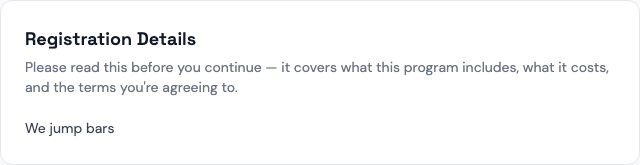
The club's description of the program — what it includes, when and where it meets, what it costs, and the terms you're agreeing to. Nothing is asked here; read it and click Continue →. You can come back to it at any point with the ← Back button.
2. Choose a Practice Time
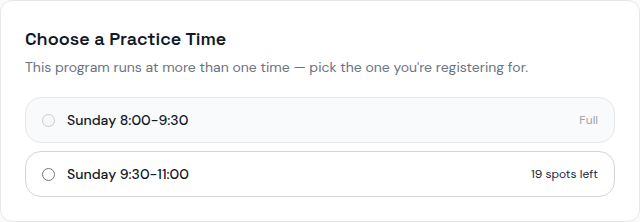
Only shown when the program runs at more than one time — for example, three Sunday windows at 8:00, 9:30, and 11:00. Pick the one you're registering for; a time that's already full is shown but can't be selected. If the program meets at a single time, this step is skipped entirely and that time is used automatically — there's nothing to choose.
3. Athlete Info
If you've registered with this club before, use "Registered with us before? We'll email you a link that fills in your info." Enter your email and open the link in your inbox (it expires after 30 minutes and works once). Your athlete's details and any earlier answers to the club's questions that still apply are filled in for you. Check everything before continuing: answers to consent-style checkboxes and the Review & Sign step are never filled in, and anything you've already typed is left alone.
Enter the athlete's First Name, Last Name, Date of Birth, and Gender (all required — Gender includes a "Prefer not to say" option), plus Grade, Experience Level, and USATF Member Number if they have one ("You can add this later if you don't have it yet."). Then their own Athlete Email and Athlete Mobile Phone — "The athlete's own contact info — not a parent's. Used to identify returning athletes and keep club records accurate." If a minor athlete has one of their own but not the other, check "Athlete doesn't have their own email or mobile phone (provide whichever exists)" and fill in whichever one they do have. If the athlete truly has neither an email nor a phone of their own — common for younger athletes — check the same box and leave both fields blank; the registration goes through either way.
Finally, the athlete's home address — Address Line 1, City, State, and Postal Code are required (Address Line 2 is optional).
4. Contact Info (minors only)
The parent or guardian's name, email, phone, relationship, and address — name, email, phone, and address (line 1, city, state, postal code) are all required. A checkbox lets you reuse the athlete's address for the contact instead of re-entering it.
The athlete's email/phone must be different from the parent's — if they match, you'll be asked to use the "doesn't have their own" checkbox back on Athlete Info instead. And the contact's name can't match the athlete's name — a minor can't be listed as their own parent/guardian.
5. Emergency & Medical
Add up to 3 emergency contacts (name, phone, relationship, email — phone is required for anyone you add), plus any medical conditions or allergies staff should know about.
6. Review & Sign
If the program requires a membership, ClubHQ checks the club's membership records for your athlete automatically — you don't have to declare anything first. You'll see one of three things:
- Already covered — a green note saying an active membership covers your athlete. No membership charge.
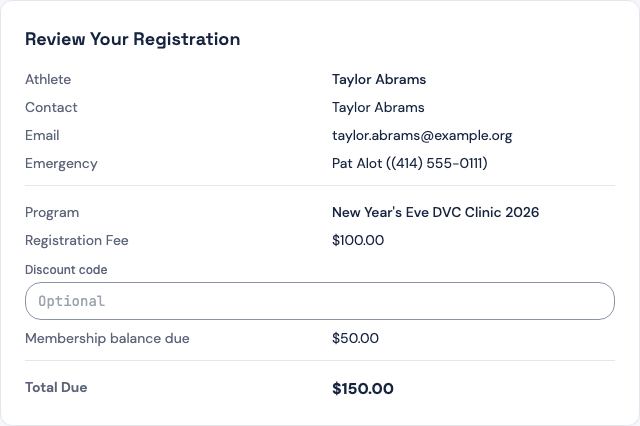
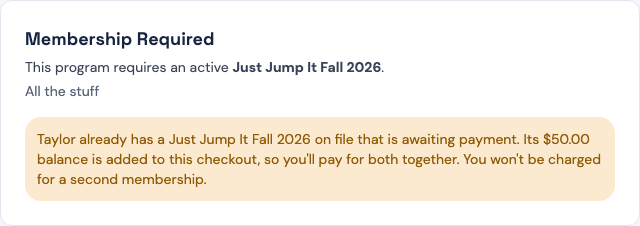
- Awaiting payment — an amber note saying your athlete already has a membership on file that hasn't been paid yet. You are not charged for a second membership. If you pay online, the unpaid balance is added to this checkout: the price summary shows a Membership balance due row and Total Due includes it, so you pay for both together. If you choose to pay in person, the balance is still owed to the club on top of this registration.
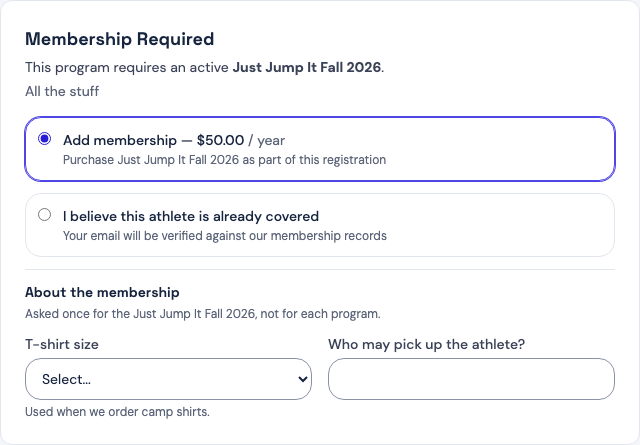
- Nothing on file — you choose whether to Add membership now, or select "I believe this athlete is already covered" if the membership is under a different email or name. If you add the membership and the club asks questions about it, they appear under About the membership. You answer them once for the membership, not again for each program.
For an athlete whose membership is awaiting payment, the price summary and the notice look like this:
When you add the membership, its questions appear under About the membership:
Answer any additional club-specific questions here. Optionally enter a Discount code.
If your club accepts both online and in-person payment, a How would you like to pay? section appears with the choices your club allows:
- Pay online now — you're taken to a secure checkout page.
- Pay in Person (labeled with whichever of Cash/Check your club accepts, e.g. "Pay in Person — Cash or Check Accepted") — your spot is reserved and you pay the club directly. Your registration stays unpaid until they record your payment.
Finally, read the Liability Waiver, check "I have read and agree to the terms above," and type your full legal name to sign it.
Click Pay [amount] & Complete Registration — or Complete Registration, if you chose Pay in Person.
What happens next
If you're paying online, you're taken to a secure Stripe checkout page, shown with your club's name and its color on the pay button. Once payment completes, you land on a confirmation page showing your registration number, a breakdown of what you paid, and a note that a confirmation email is on its way to your contact email. Keep your confirmation number for your records.
Which payment methods appear on that page — card, bank payment, Link, or some combination — is your club's choice from the methods ClubHQ supports. Most clubs accept cards only.
If your club offers a bank payment
Bank payments do not clear immediately — they typically take a few business days. That changes what you see:
- Checkout completes and you get a confirmation page as usual, but your registration stays unpaid until the money actually arrives. That is expected, not an error.
- Your confirmation email arrives when the payment clears, not when you submit — so allow a few days before assuming something went wrong.
- If the payment fails to clear, ClubHQ does not currently email you about it. Your registration will simply stay unpaid. If several days pass with no confirmation email, contact the club.
Paying by card avoids all of that — it settles immediately.
If you chose Pay in Person, there's no checkout page — you go straight to the confirmation page, which shows an Amount Due rather than a total paid, along with a reminder of which method(s) your club accepts. Your registration is recorded and your spot is held, but it shows as unpaid until the club records the money.
If the total comes to $0 (a free program, or a discount code that covers the full fee), there's no payment step — you're taken straight to the confirmation page.
If you have trouble completing registration — the form says it's not currently available, full, your chosen practice time filled up while you were completing the form, or you get an error at submission — see Registration problems.